

Wireless earbuds have become an essential part of daily life, offering convenience, portability, and high-quality sound for music, calls, and entertainment. Among the most popular choices are Apple AirPods, known for their seamless connectivity and user-friendly design. However, many users encounter a common issue, one AirPod not working, where one side suddenly stops producing sound while the other works perfectly.
This problem can be frustrating, especially when there is no visible damage. Fortunately, in most cases, the issue is caused by minor factors such as dirt buildup, battery imbalance, or connectivity glitches. Understanding the causes and applying simple troubleshooting steps can help users quickly fix the problem and restore their listening experience.
| Section | Key Points |
| Problem | One AirPod issue |
| Main Causes | Uneven battery, Dirt buildup, Bluetooth problems, Software glitches, Audio imbalance, and physical damage |
| Cleaning Solution | Clean AirPods, remove debris, Clean case |
| Reconnect Method | Reconnect the device, fix connection issues. |
| Reset Solution | Reset AirPods, Restore settings |
| Settings Check | Audio imbalance, check settings |
| Software Update | Update software, fix bugs. |
| Device Testing | Test the device, identify the issue. |
| Damage Inspection | Inspect damage, check hardware. |
| Support Option | Contact Apple |
| Prevention Tips | Regular maintenance, Careful handling, and proper storage |
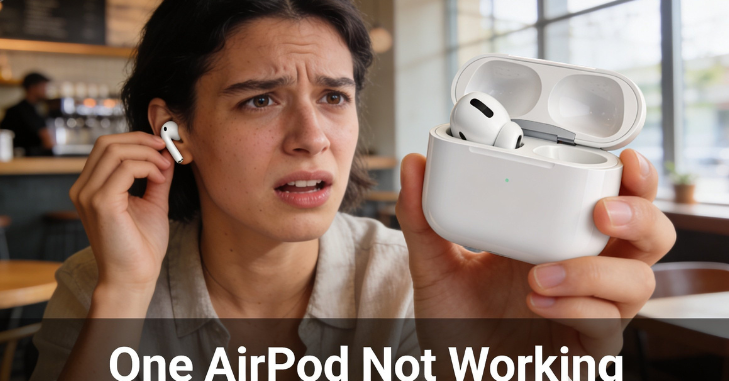
One AirPod Not Working
Wireless earbuds have transformed the way people listen to music, attend calls, and enjoy media. Among the most widely used options are Apple AirPods, known for their sleek design and smooth connectivity. Despite their reliability, users often face a common and frustrating issue where one AirPod stops working while the other continues to function normally.
This problem can feel confusing, especially when there is no obvious damage. However, in most cases, the issue is not serious and can be fixed easily at home. Understanding the reasons behind one AirPod not working and applying the right solutions can save both time and money.
Common Reasons Why One AirPod Is Not Working
There are several reasons why one AirPod may stop working. In many cases, the issue is not due to a defect but rather small, manageable problems.
Uneven Battery Levels
One of the most common causes is uneven battery levels. If one AirPod is not placed correctly in the charging case, it may not charge properly, causing it to drain faster than the other.
Dirt and Earwax Buildup
Another frequent issue is the buildup of dirt or earwax. Small particles can block the speaker mesh or interfere with charging, reducing or stopping sound.
Bluetooth Connectivity Problems
Connectivity issues can also cause one AirPod to stop working. Since AirPods rely on Bluetooth, even a minor disruption can cause one side to disconnect.
Software Glitches and Updates
Software bugs or outdated device systems can interfere with proper functioning, leading to performance issues in one AirPod.
Audio Balance Settings
Sometimes the problem is in the device settings. If the audio balance is shifted to one side, it may seem like one AirPod is not working.
Physical Damage
Drops or exposure to water can damage internal components, potentially permanently affecting the performance of one AirPod.
Clean Your AirPods and Charging Case
- Cleaning your Apple AirPods is one of the simplest yet most effective solutions to fix performance issues.
- Many users overlook cleaning, even though it directly affects both sound quality and charging.
- Dirt, earwax, and dust can build up on the speaker mesh, reducing or completely blocking sound.
- This buildup can make it seem like one AirPod is not working, when the sound is actually just obstructed.
- Use a soft, dry cloth to clean the outer surface of the AirPods gently.
- A cotton swab can help clean the speaker area carefully without causing damage.
- Avoid using water or sharp objects, as they can harm the delicate internal components.
- The charging case also needs regular cleaning to maintain proper functionality.
- Dust inside the case can block the charging connectors, preventing proper contact.
- Keeping both the AirPods and the case clean helps ensure better performance and reduces the risk of future issues.
Reconnect Your AirPods to Your Device
Sometimes the issue lies in the connection between your AirPods and your device. Reconnecting them can refresh the link and resolve minor glitches. Start by going into your device’s Bluetooth settings and removing the AirPods from the list of connected devices.
After that, place them back in the charging case, wait a few seconds, and then reconnect them as if you were setting them up for the first time. This process helps eliminate temporary connection errors and ensures that the device properly recognizes both AirPods. In many cases, this simple step restores normal functionality.
Reset Your AirPods Step by Step
If reconnecting does not solve the issue, resetting your AirPods is a more powerful solution. Resetting clears internal errors and restores the default settings. To reset, place both AirPods in the charging case and close the lid for a short time. Then open the lid and press the setup button on the back of the case until the indicator light flashes.
After this, reconnect the AirPods to your device. This process often resolves deeper software issues and ensures that both AirPods function properly together again.
Check Audio Balance Settings on Your Device
Sometimes the problem isn’t with the AirPods at all, but with the settings on your device. Many smartphones allow users to control the balance of sound between the left and right sides. If the balance is shifted entirely to one side, you will only hear audio from one AirPod.
This can easily be mistaken for a hardware issue. By going into your device’s accessibility or audio settings and ensuring the balance is centered, you can quickly fix the problem. This is a simple but often overlooked solution.
Update Your Device Software
Outdated software can sometimes interfere with how AirPods function. Devices that are not updated may experience compatibility issues, bugs, or connection problems. Updating your device to the latest version of its operating system can resolve these issues.
Software updates often include fixes that improve Bluetooth connectivity and overall performance. After updating, reconnect your AirPods and test them again. In many cases, this step alone can fix the problem.
Test AirPods with Another Device
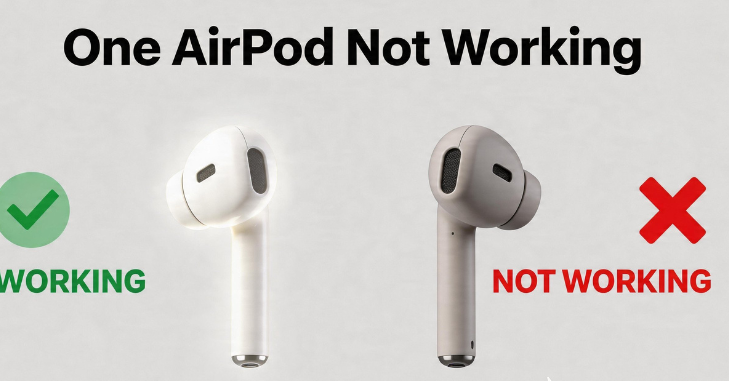
- To better understand the issue, test your Apple AirPods with a different device.
- This helps determine whether the problem is with the AirPods or your original device.
- If both AirPods work normally on another device, the issue is likely related to your phone’s settings or software.
- If one AirPod still does not work, it may indicate a hardware problem.
- This step gives you clarity and helps you decide what to do next.
Inspect for Physical Damage
Physical damage is another possible cause that should not be ignored. Even small drops or exposure to moisture can affect the internal components of an AirPod. Carefully examine your AirPods for any visible signs of damage, such as cracks, dents, or discoloration.
If an AirPod has been exposed to water, it may stop working completely. Unfortunately, physical damage is usually not repairable at home and may require professional repair or replacement.
When to Contact Apple Support
If none of the solutions work, it may be time to seek help from Apple. Their support services can diagnose the issue and provide repair or replacement options. You should consider contacting support if one AirPod does not charge, produces no sound, or continues to malfunction after you have tried all troubleshooting steps. If your AirPods are still under warranty, you may be able to get a replacement at little or no cost.
Tips to Prevent AirPod Issues in the Future
Taking proper care of your Apple AirPods can help prevent similar problems. Regular maintenance is important for keeping them functioning smoothly.
Keep Your AirPods Clean
Keeping your AirPods clean reduces the risk of sound blockage and charging issues.
Store Them Properly
Storing them in their case when not in use protects them from dust and accidental damage.
Avoid Exposure to Moisture
Avoiding exposure to water is important, as moisture can damage internal components.
Charge Regularly
Regular charging helps maintain battery health and consistent performance.
Handle with Care
Handling your AirPods carefully ensures long-term durability. Small habits like these can make a big difference in maintaining performance.
Conclusion
In conclusion, experiencing one AirPod not working is a common but usually fixable issue that does not always require professional repair. Most problems arise from simple causes, such as dirt buildup, uneven charging, or minor connectivity issues. By following practical steps such as cleaning the AirPods, reconnecting or resetting them, and checking device settings, users can often resolve the issue quickly at home.
Additionally, maintaining good habits, such as regular cleaning, careful handling, and proper storage, can help prevent such problems in the future. If the issue persists despite all efforts, seeking help from Apple support is the best option to ensure a reliable and long-lasting solution.
Want to know about Samsung 860 QVO Explained Check out our Tech category.
FAQs
Only one AirPod usually works because of a charging failure (dirty contacts/dead battery), a temporary Bluetooth pairing glitch, or incorrect audio balance settings. Fix it by cleaning the charging contacts on the non-working AirPod and inside the case, resetting them by holding the back button while in the case, or repairing via Bluetooth.
AirPods can amplify ambient sounds, which may help mask tinnitus for some users, but they are not a dedicated treatment for tinnitus.
If one AirPod is not working, first clean the charging contacts on both the AirPod and inside the case, then charge them for 30 seconds. If that fails, reset the AirPods by holding the back button while the lid is open until the light flashes amber. Finally, “Forget” the device in Bluetooth settings and repair.